In industrial robotics, teach pendants are the primary human-machine interface. You use it to program, monitor, and control robotic arms. When a pendant gets damaged or loses calibration, the entire automation cell stops. That downtime halts production fast, disrupting everything from welding lines to packaging stations.
A functioning, well-calibrated teach pendant is essential for safe operations and steady uptime. This is true whether you're working with ABB, FANUC, Yaskawa, KUKA, or another brand.
We walk through exactly where teach pendants usually fail. We cover practical teach pendant repair strategies and calibration best practices to help you get your robots back and keep them running smoothly.
1. How Teach Pendants Work (and Why They Fail)
Operators rely on the teach pendant to interact directly with the robot. The device gives you:
- Real-time movement control
- Manual axis jogging
- Safety stop commands
- Access to robot programming and configuration
- Visual display of system status
Common Reasons for Teach Pendant Repair
Manufacturers build these units to be tough. Still, they endure constant handling, harsh factory floors, and daily wear and tear. Eventually, parts break down.
- Cracked or unresponsive touchscreens
- Stuck or damaged membrane keys
- Broken joystick or selector switches
- Faulty emergency stop button
- Damaged communication cables or connectors
- Inoperable USB ports or SD card readers
- Software or firmware mismatches with the robot controller
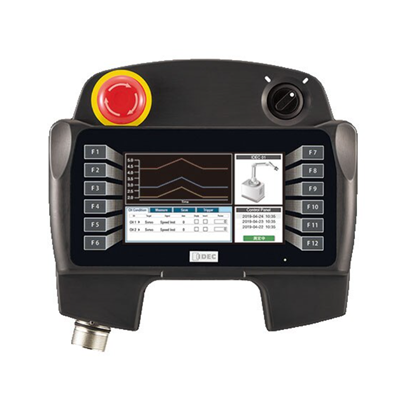
Pinpointing the exact failure is your first step. Once you know what is broken, you can decide if the unit needs professional teach pendant repair or a full replacement.
2. Repairing Screens and Buttons
Screen issues are among the most common teach pendant failures. You might see deep scratches, dead pixels, or a completely blank display. Sometimes, the screen just stops responding to touch. When this happens, it is time for a repair.
How to Replace a Teach Pendant Screen
- Disconnect power and remove the pendant from the robot.
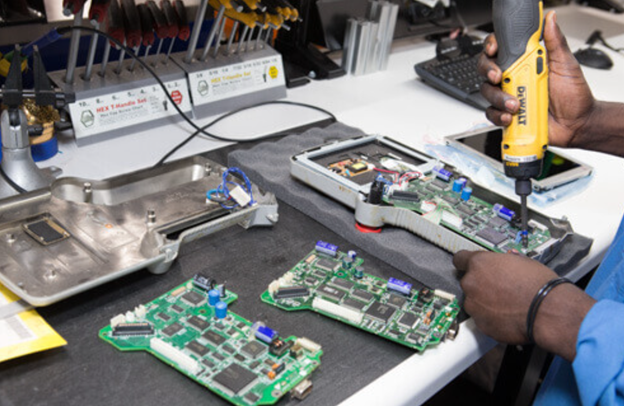
- Open the housing carefully. Most cases use Torx or hex screws.
- Disconnect the screen ribbon cable from the main PCB.
- Take out the damaged touchscreen or LCD. Swap in an OEM-compatible replacement.
- Clean all internal surfaces before reassembly.
- Power on the unit to check the screen alignment and touch response.
For membrane-style buttons or jog dials:
- Clean contact pads with isopropyl alcohol.
- Replace damaged key overlays or mechanical switches.
- Press the keys to test the resistance and make sure they feel consistent.
Pro tip: Take photos at every step as you take the unit apart. This makes it much easier to route cables correctly when you put everything back together.
3. Troubleshooting Cables and Connectors
Teach pendants are tethered to the robot controller through communication cables. These cables are tough, but constant bending, pulling, and poor cable management will eventually cause internal breaks. This causes connection issues.
Signs of Cable and Connector Damage
- The robot controller fails to recognize the pendant.
- The pendant powers on but can't communicate.
- The unit disconnects randomly during operation.
- You see frayed wires or bent connector pins.
How to Troubleshoot Teach Pendant Cables and Connectors
- Inspect the cable for cuts, kinks, or signs of stress.
- Test the pin-to-pin integrity using a continuity tester.
- Clean the connectors with a contact-safe cleaner.
- Make sure the connector sits securely and the latch engages fully.
- Look for breaks in the shielding or ground wire. This is especially important in facilities with high electromagnetic interference (EMI).
If the cable fails these tests, you will need to replace the assembly. Many pendants use field-replaceable cable kits for a quick fix, while others require you to take the whole unit apart to swap the wire.
4. Software and Firmware Update Procedures
Mechanical repairs do not fix everything. If the software or firmware is outdated or mismatched, the pendant still will not work right.
When to Update Teach Pendant Firmware
- The pendant shows compatibility errors during startup.
- The interface runs slowly or glitches.
- You recently updated the main robot controller.
- Specific functions or safety protocols are not working.
How to Perform a Teach Pendant Software Update
- Download the latest firmware or pendant OS from the robot manufacturer's website (FANUC, ABB, Yaskawa, etc.).
- Load the update file onto a USB drive or SD card and insert it into the pendant.
- Open the maintenance or system menu (may require OEM login).
- Follow the prompts on the screen. Never turn off the power while the update is running.
- Reboot the system. Check that the pendant's firmware version matches the controller.
Caution: Only use firmware approved for your exact pendant model and robot generation. Cross-version flashing can render the unit unusable.
5. Calibration and Programming Backup Strategies
Calibration ensures that the pendant's joystick inputs, touchscreen alignment, and emergency stop functions work as expected. Skipping this step after a repair creates safety risks and leads to imprecise robot control.
Teach Pendant Calibration Checklist
- Test the touchscreen or stylus alignment.
- Verify the jog axis movements.
- Check the emergency stop delay and reset functions.
- Adjust the backlight and contrast settings.
- Test haptic feedback and LED indicators (if applicable).
Access the calibration utility through the OEM diagnostic menus. Always run a full calibration after replacing a screen or joystick.
Best Practices for Backing Up Teach Pendant Programs
- Export programs using the pendant's USB or SD ports, or directly through the controller interface.
- Save all system parameters, user frames, and safety zones.
- Keep copies on local drives and in the cloud.
- Organize everything into version-controlled folders for each robot or production line.
Having these backups ready ensures a fast recovery if a pendant or controller fails without warning.
6. Safety Considerations During Teach Pendant Repair
Teach pendants are safety-rated devices. They house critical emergency stop (E-stop) buttons and enabling switches. If you mishandle a repair, you risk compromising these safety functions and exposing operators to danger.
Key Safety Steps in Teach Pendant Repair and Calibration
- Always disconnect power to the robot and controller before you open the pendant.
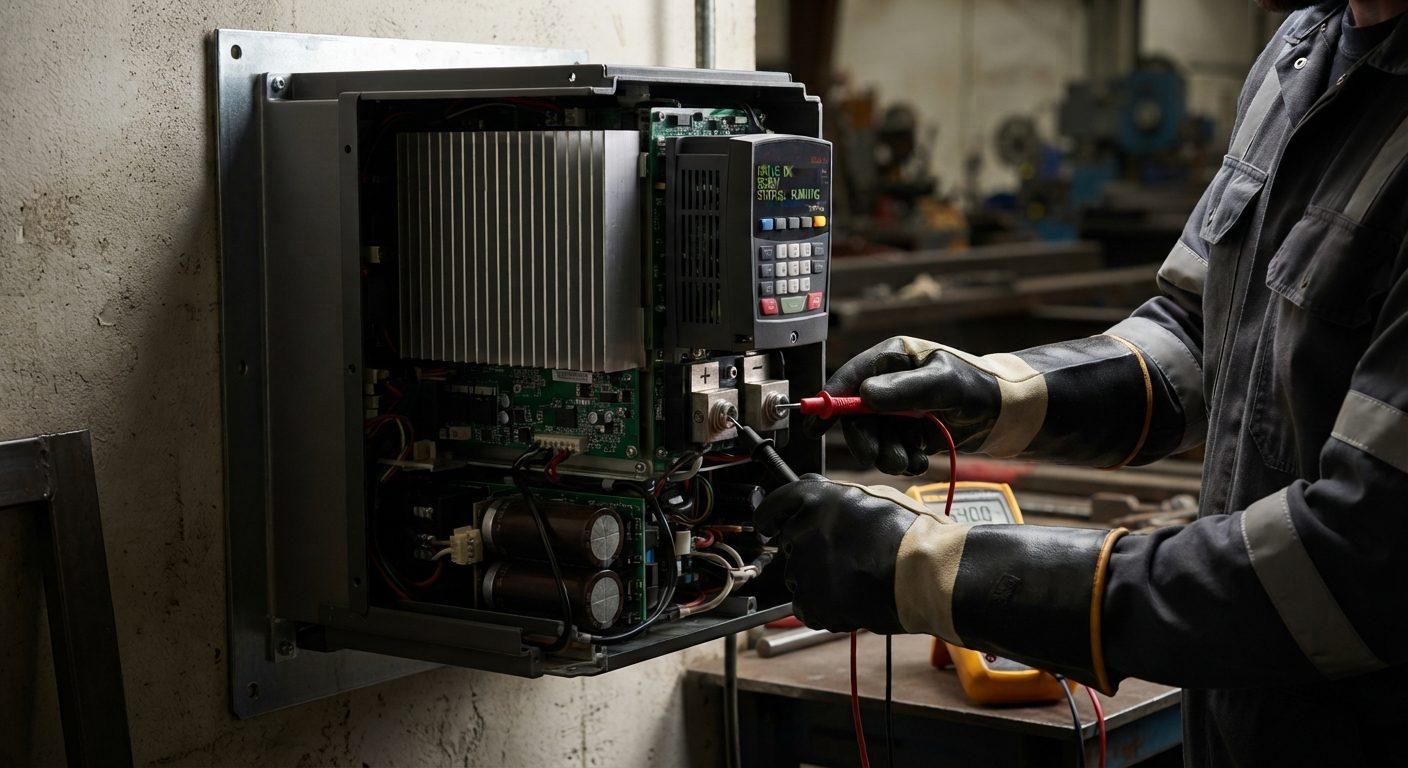
- Check that capacitors are fully discharged on models that store power.
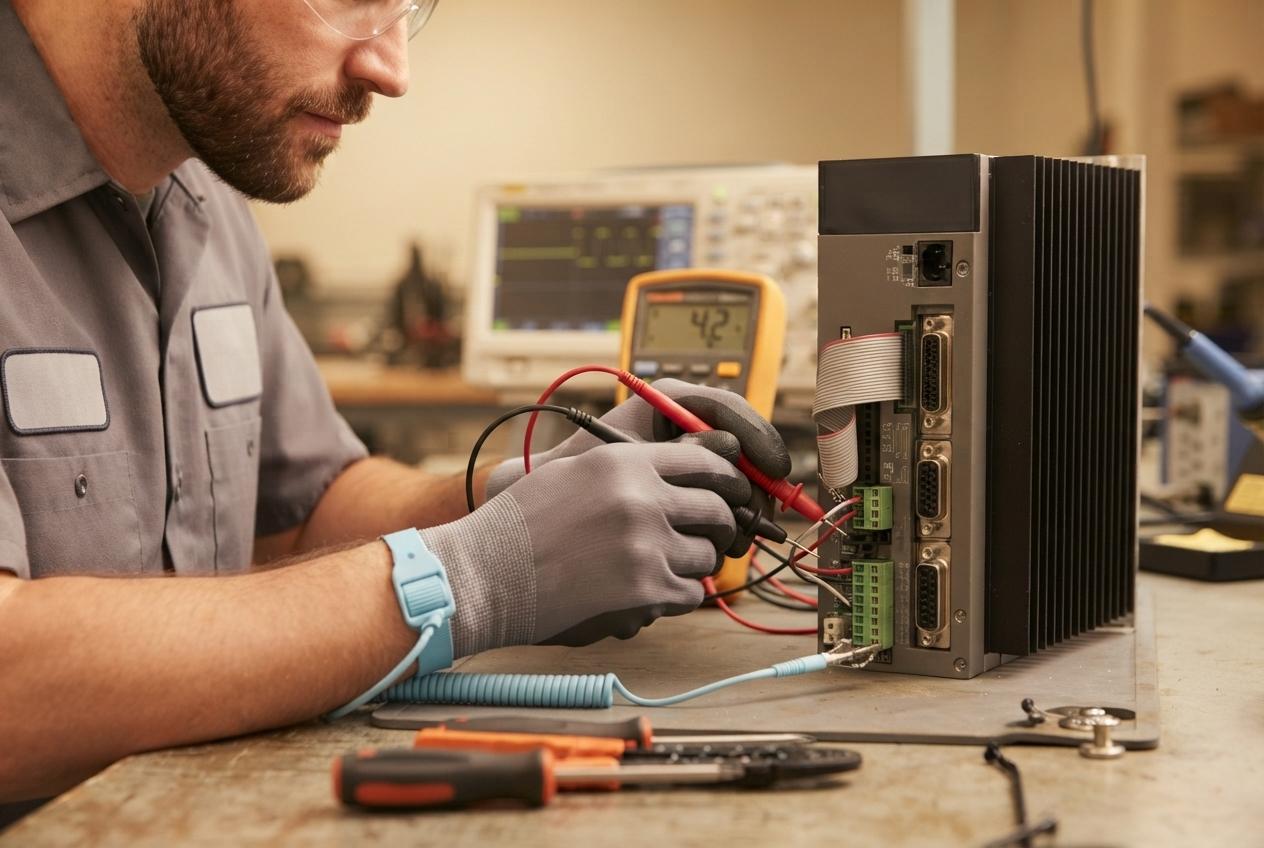
- Use electrostatic discharge (ESD) protection when you handle internal parts.
- Test all safety circuits and interlocks after the repair, before you resume operation.
- Confirm the pendant passes its self-diagnostic checks during startup.
Teach pendants are often part of the robot's functional safety circuit. As a result, you cannot bypass procedures. You must test and validate any modifications according to your facility's safety protocols.
7. Compatibility Issues with Different Robot Manufacturers
You cannot simply plug any teach pendant into any robot. Even within the same brand, the firmware, software versions, connector pinouts, and communication protocols vary widely. These differences cause major problems on the floor.
Common Teach Pendant Compatibility Pitfalls
- Using a newer pendant on an older controller (and vice versa).
- Cross-using similar-looking pendants between robot families (e.g., FANUC R-J3 vs R-30iB).
- Mixing regional models. A North American unit might not talk to a European or Asian controller.
- Flashing the wrong firmware and permanently bricking the device.
- Trying to retrofit generic or third-party pendants without the right interface.
How to Avoid Teach Pendant Compatibility Issues
- Check the pendant part number against your exact controller model and revision.
- Read the manufacturer's compatibility charts and service bulletins.
- Label every pendant with a robot ID tag to stop accidental mix-ups.
- Keep your firmware and program backups strictly paired to specific units.
If you're unsure, working with a professional repair provider familiar with multi-brand systems (like KAIN Automation) can save time and protect your equipment.
Keep Your Robots Running with Prompt Teach Pendant Repair & Maintenance
The teach pendant controls your productivity. When it fails, your operation stops. Prompt, accurate repairs keep your automation online and safe, from fixing a cracked screen to resolving outdated firmware.
Teach pendant repair and maintenance summary:
- Know how the pendant interacts with the rest of the system.
- Check screens, buttons, and connectors for wear regularly.
- Run firmware updates and safety calibrations when required.
- Keep copies of all logic and system files.
- Follow strict safety procedures during any maintenance.
- Confirm compatibility before you swap a pendant or flash firmware.
- Work with a trusted teach pendant repair partner for OEM-grade service.
Need Help with Teach Pendant Repair?
KAIN Automation offers professional teach pendant repair, calibration, and compatibility support for major robotic brands across Ontario. Whether you need same-day cable replacement or full touchscreen rebuilds, we've got you covered. Contact us today to schedule a repair.